Inside a drug discovery program: a tour of every tab
Last updated: November 12, 2026
Introduction
Open any program from the Programs page and you land on its Overview. The program's own navigation runs down the left side: Overview, Framework, Datasets, Analysis spaces, Target lists, Resources, Users and History. This article walks through each one using an example rheumatoid arthritis drug discovery program.
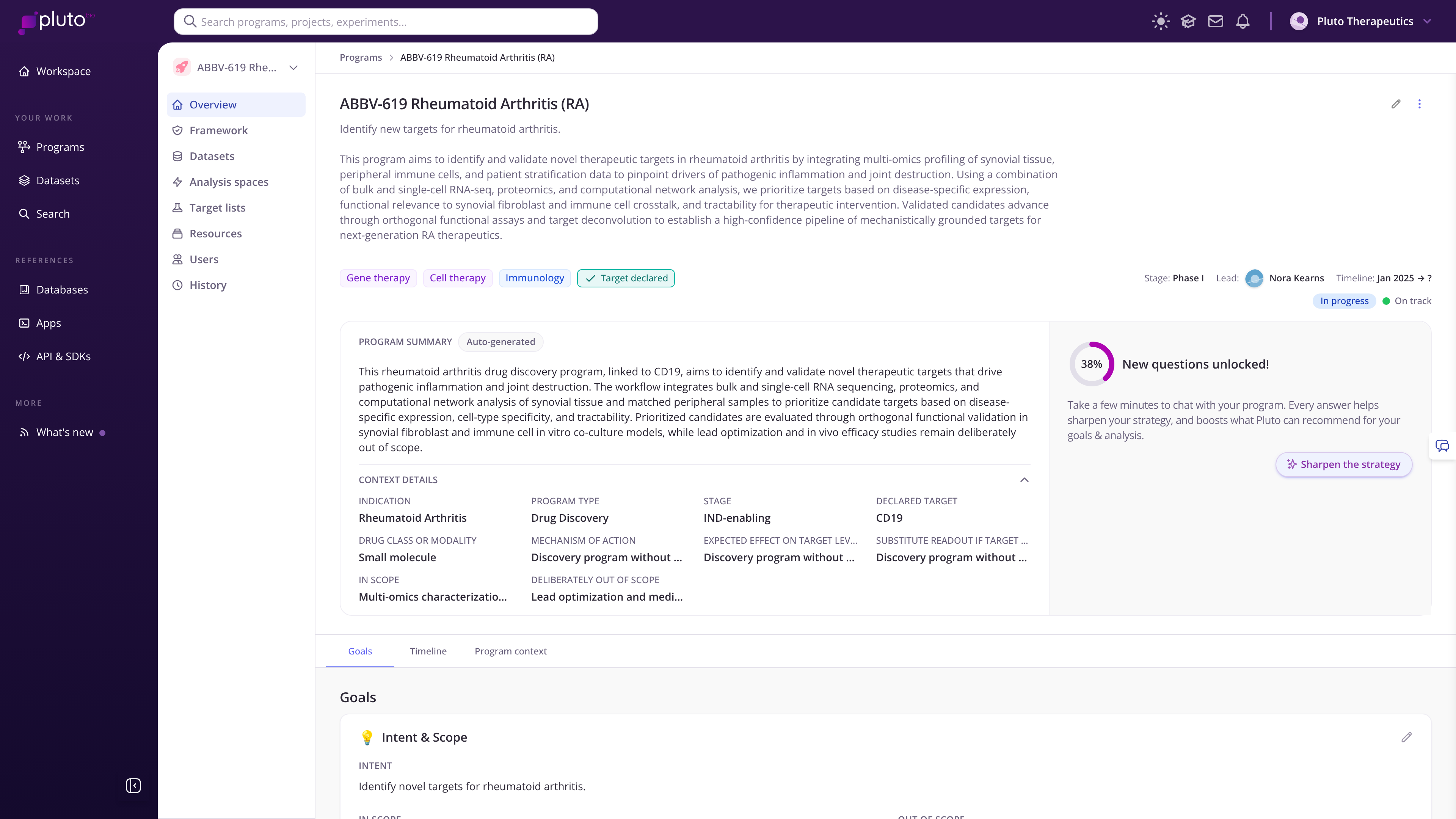
An example program's overview page with program navigation on the left
Overview: the program at a glance
The top of every program tab shows its description, modality and therapeutic area tags, whether a target is declared, and its stage, lead, timeline, status and health.
Program summary is generated automatically from everything Pluto knows about the program.
Context details capture the indication, program type, stage, declared target, modality, mechanism of action, and what is in and out of scope.
The panel beside the summary shows how complete your program context is and invites you to answer a few more questions. Every answer sharpens what Pluto recommends.
Below that are three tabs:
Goals: the program's intent, what is in scope and what is deliberately out of scope.
Timeline: the program's activities and milestones over time.
Program context: a living document maintained by Pluto's Interviewer. Select Add context via chat to fill in what is missing in a conversation instead of a form.
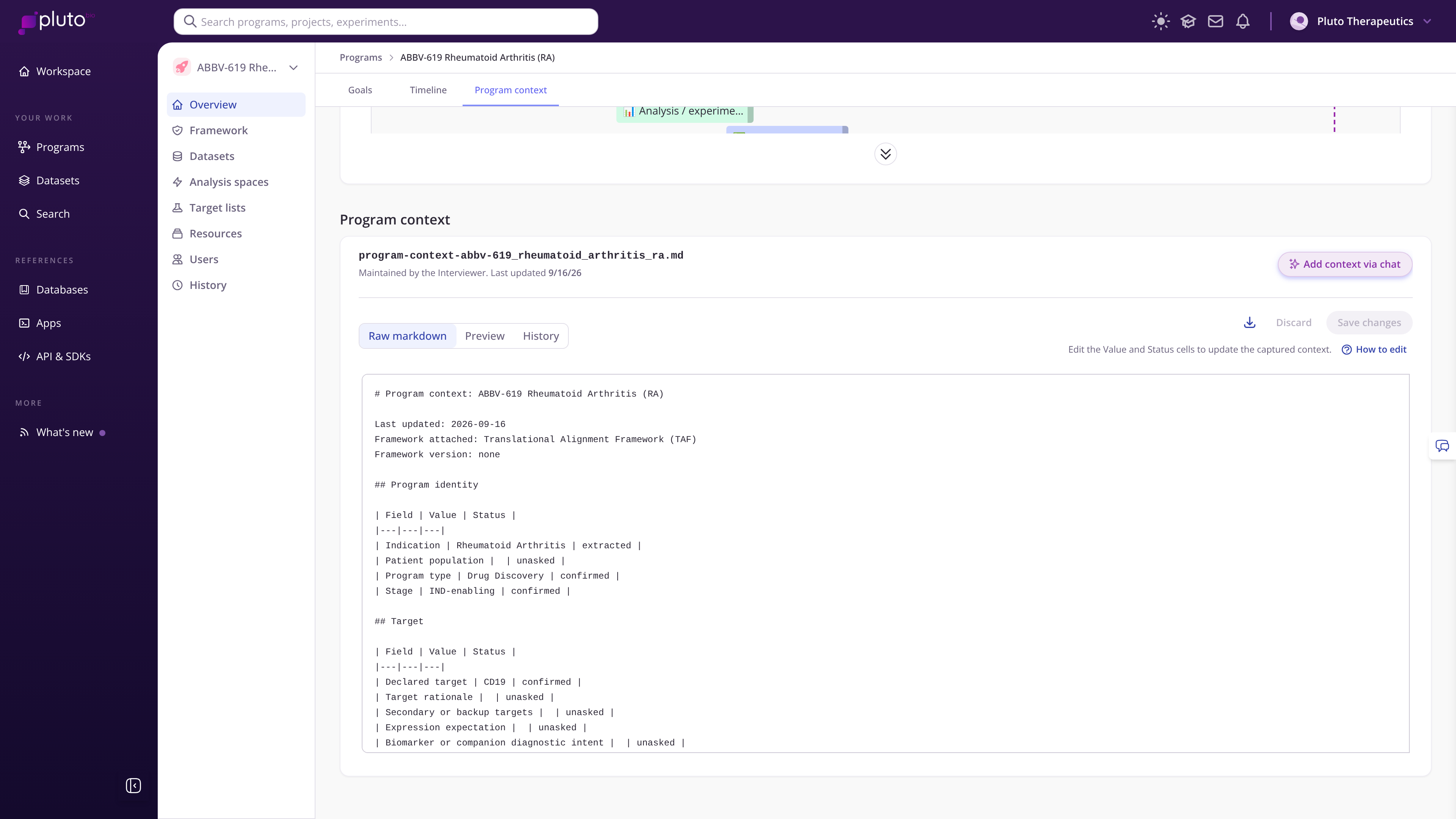
Pluto's Interviewer can be accessed by selecting 'add context via chat'
Framework: how strong is the evidence?
The Framework tab measures your program against the Translational Alignment Framework™ (TAF). Its four dimensions are Biology & Disease Discovery, Target & Therapeutic Actionability, Model & Disease Alignment, and Mechanistic & Functional Confidence. Each dimension holds criteria, and each criterion is marked as supported, partial or missing based on your evidence.
Next steps recommends what to do next, each with an analysis plan.
Coverage gaps lists the criteria where evidence is missing or weak.
Criteria breaks the framework down dimension by dimension.
Configure framework lets you add, rename or remove dimensions and criteria. These changes affect scoring, so make them deliberately, usually at the start of a program.
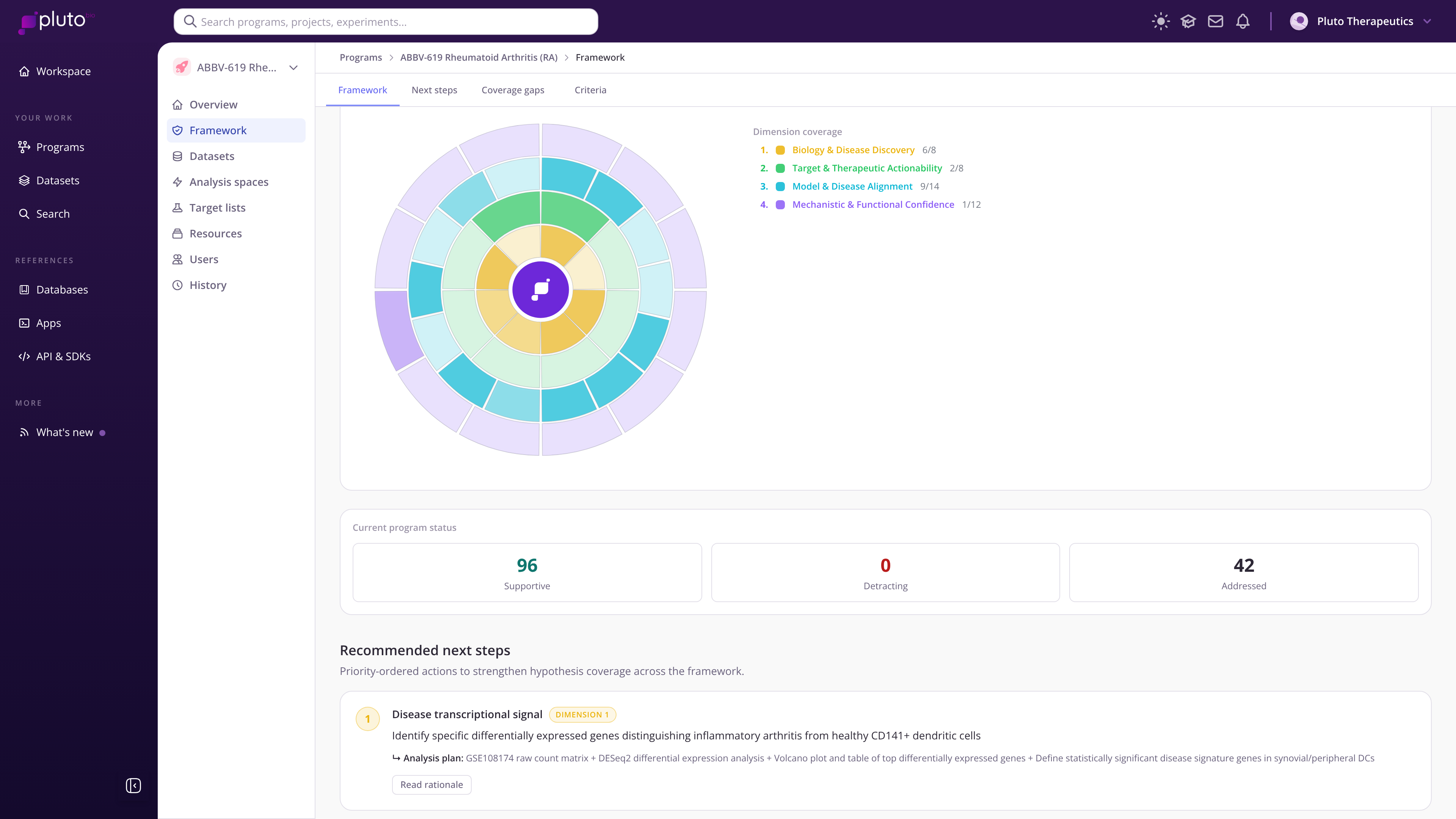
The Framework overview and coverage
Datasets: the experimental data registry
The Datasets tab lists every dataset linked to the program, with its assay, organism, folder, status, share level and owner.
Select Dataset to create a new dataset for the program.
Select Search available datasets to link data that already exists in Pluto, such as a public GEO study. Datasets already in the program show a check mark.
Open any dataset to see its Overview (samples, assay data and the analysis spaces that use it), Metadata (provenance and ontology annotations), Protocols and History.
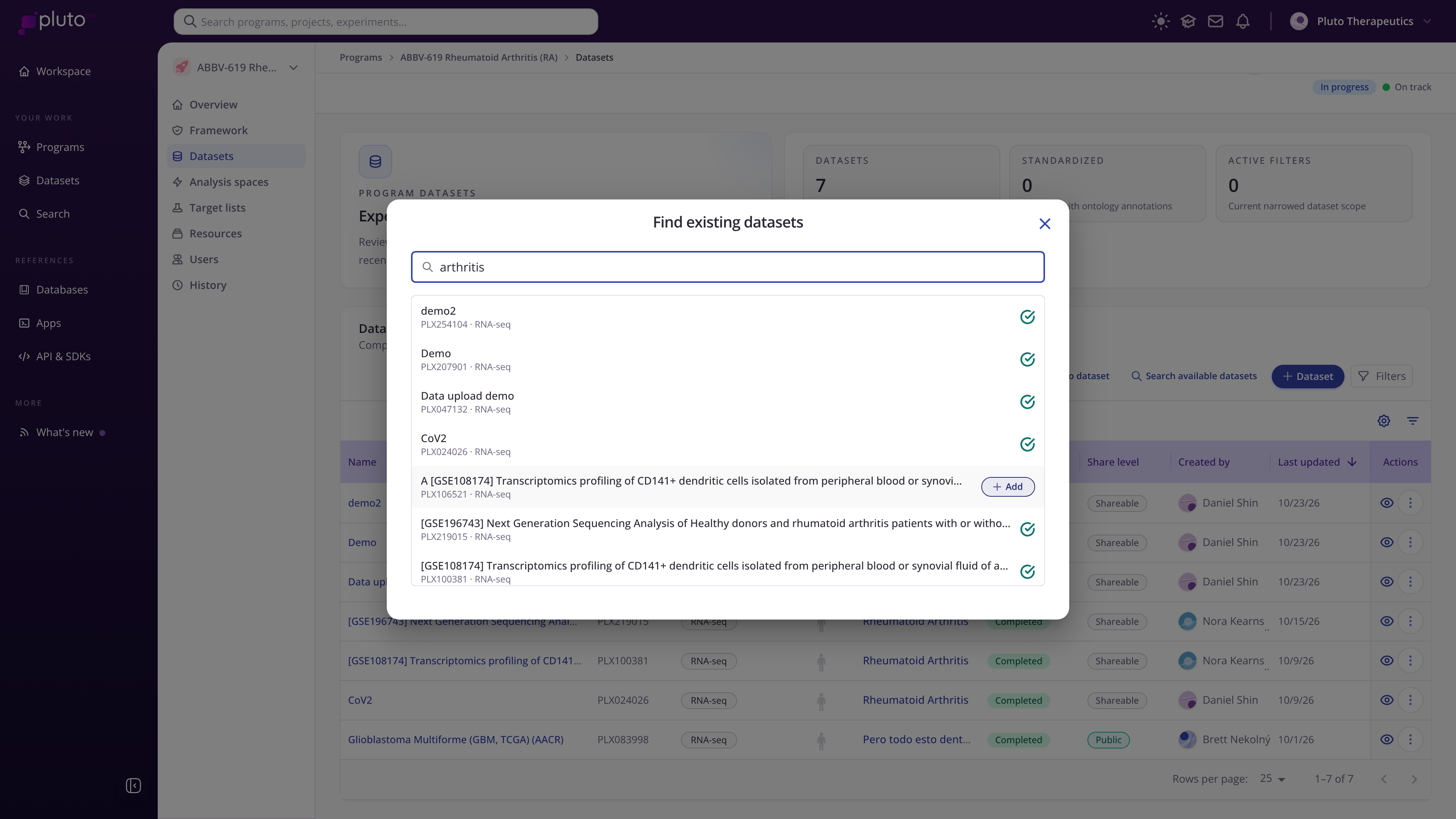
Searching and adding available datasets
Analysis spaces: where questions get answered
An analysis space collects the analyses and plots that answer one scientific question, such as "What distinguishes synovial CD141+ dendritic cells in arthritis?" Each space shows its hypothesis and how its plots align to the program framework.
Canvas: arrange plots so they tell a story, from an overview such as PCA through differential expression to pathways and gene-level results.
Summary: key findings and evidence, mapped to the framework dimensions, plus a breakdown of analyses and linked datasets.
Results: every analysis in the space, ready to search, filter and download.
Insights: custom bioinformatics reports from Pluto's team, if your organization has requested one.
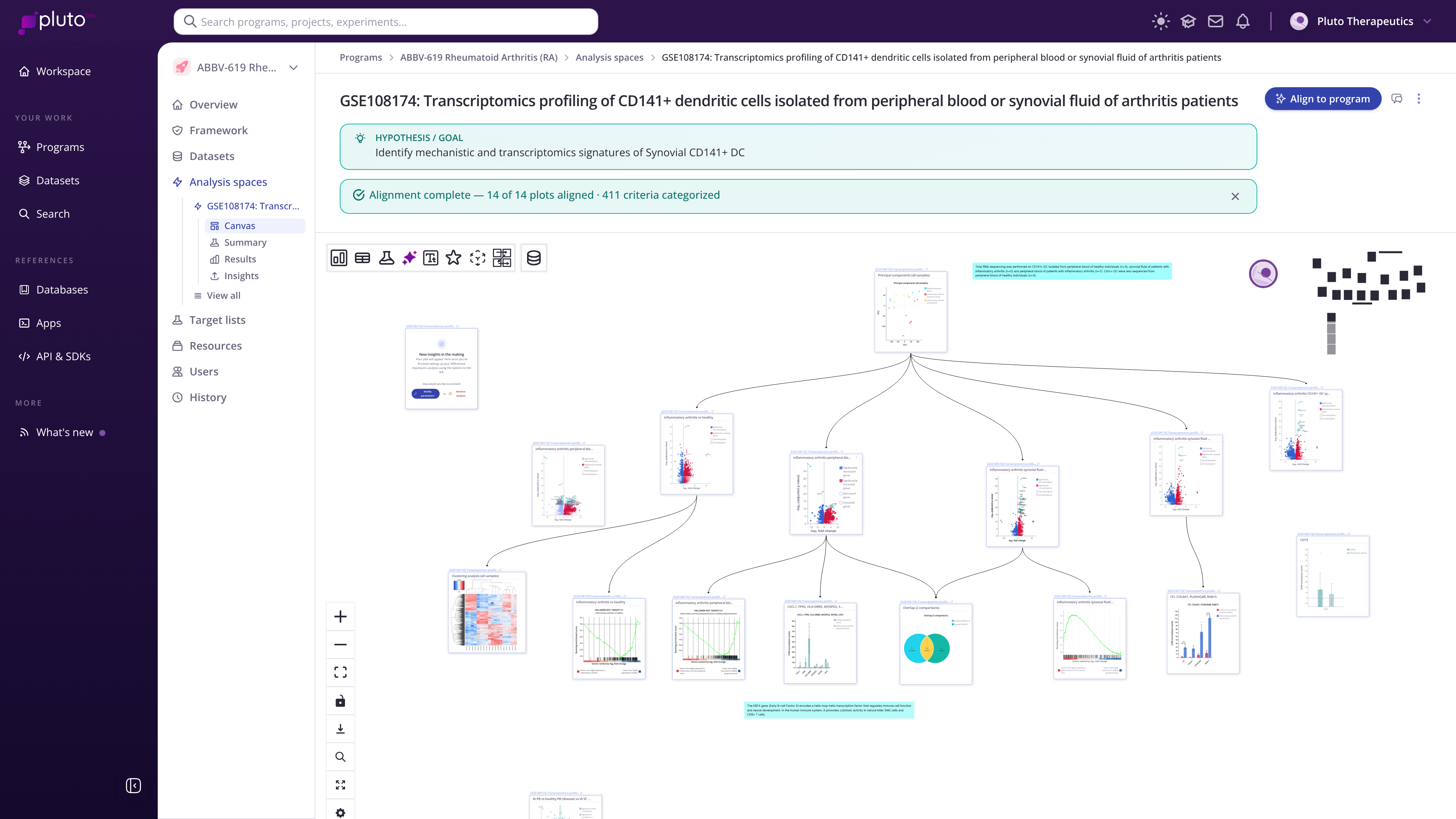
A scientific story organized on an analysis canvas
Target lists
Target lists shows the program's declared target and indication, and the curated lists of molecular targets your team is evaluating.
Resources
Resources holds biomarker lists, literature sets and other items pinned to the program.
Users
Users shows the program owner and everyone who can view or edit the program, with their roles.
History
History is the program's audit log. Every change to the program and its datasets and analysis spaces is recorded with who made it and when. Filter by action or object type, or switch between your own activity and everyone's.