Connecting the MCP in ChatGPT
Last updated: November 17, 2026
In ChatGPT, Pluto Bio is added as a custom Model Context Protocol (MCP) server and installed as a plugin in your workspace. Once it's installed and you've signed in, you can call Pluto from any chat by typing @Pluto Bio. These steps use a ChatGPT workspace account.
For instructions on setting up the MCP in Claude, see our help doc Connect your AI assistant to Pluto.
1. Open Plugins
In ChatGPT, select the Customize icon in the left menu, then select Plugins. Open the tab with your workspace's name.
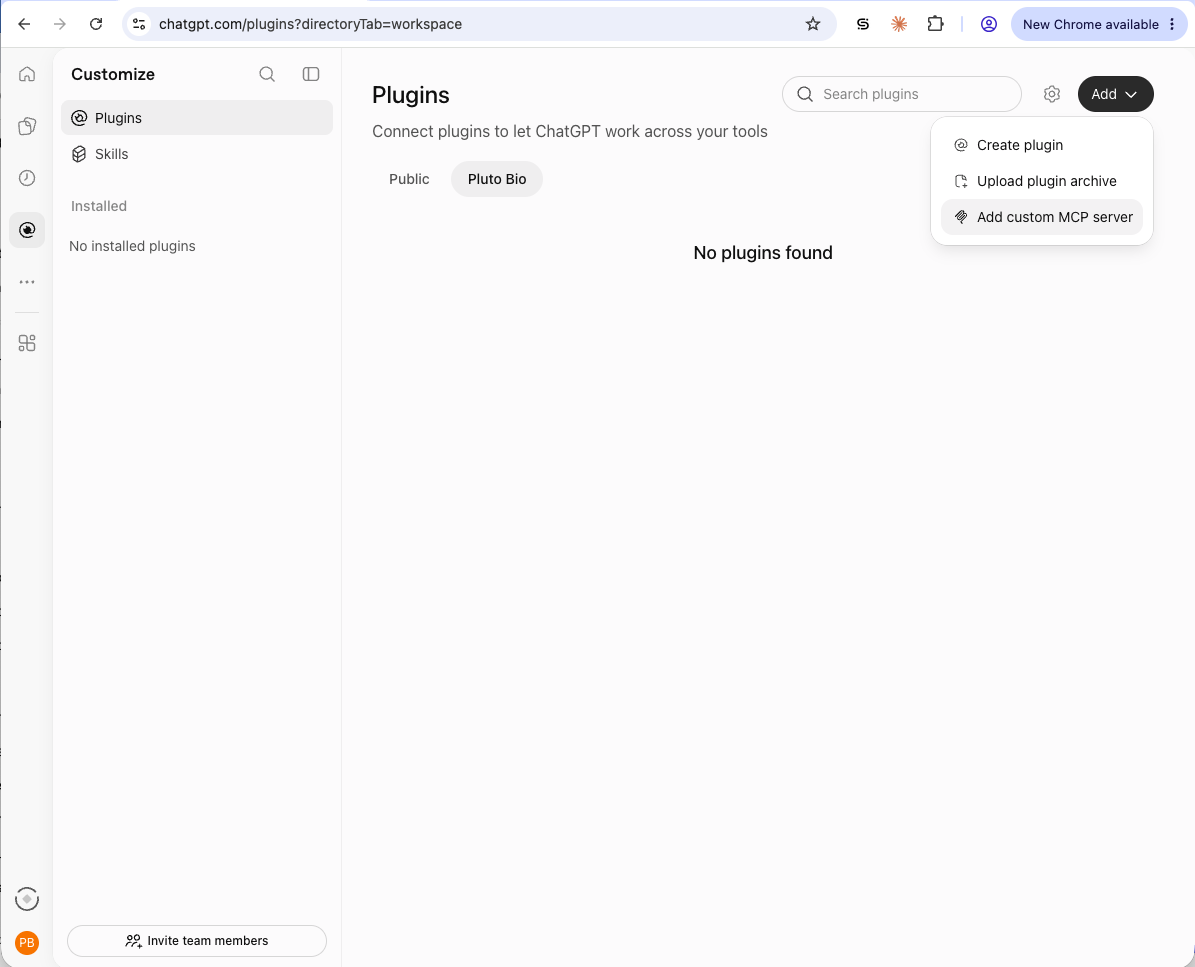
2. Add a custom MCP server
Select Add in the top-right corner, then select Add custom MCP server.
If you don't see this option, your workspace admin may need to enable custom MCP servers for your workspace.
3. Enter the Pluto Bio server details
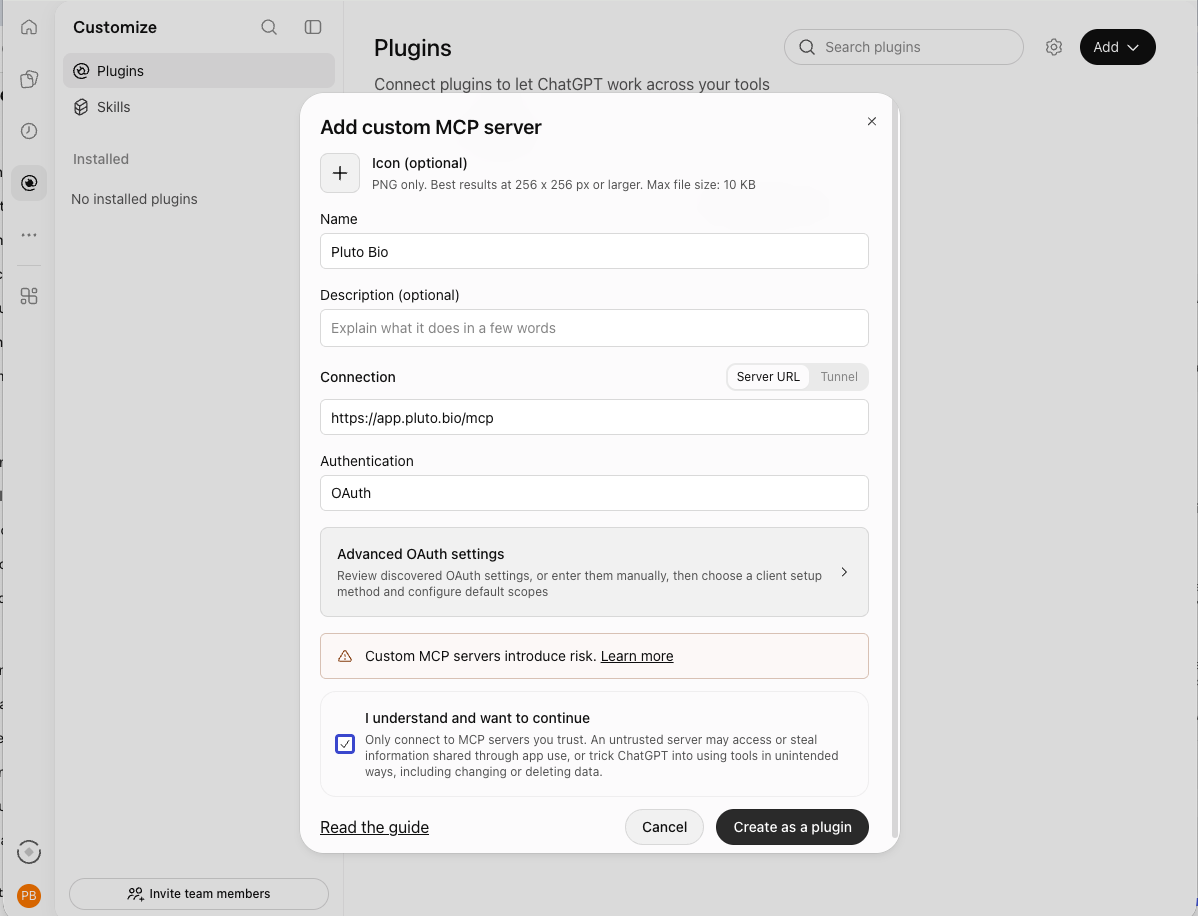
Fill in the form with these values.
Field | Enter |
|---|---|
Name |
|
Description (optional) | A short description of what Pluto holds, for example |
Connection | Server URL: Note: for enterprise clients, please contact mcp.support@pluto.bio as your server URL may be different. |
Authentication | OAuth |
Leave Advanced OAuth settings as they are. ChatGPT discovers Pluto's sign-in settings automatically, so you don't need a client ID or secret.
Check I understand and want to continue, then select Create as a plugin.
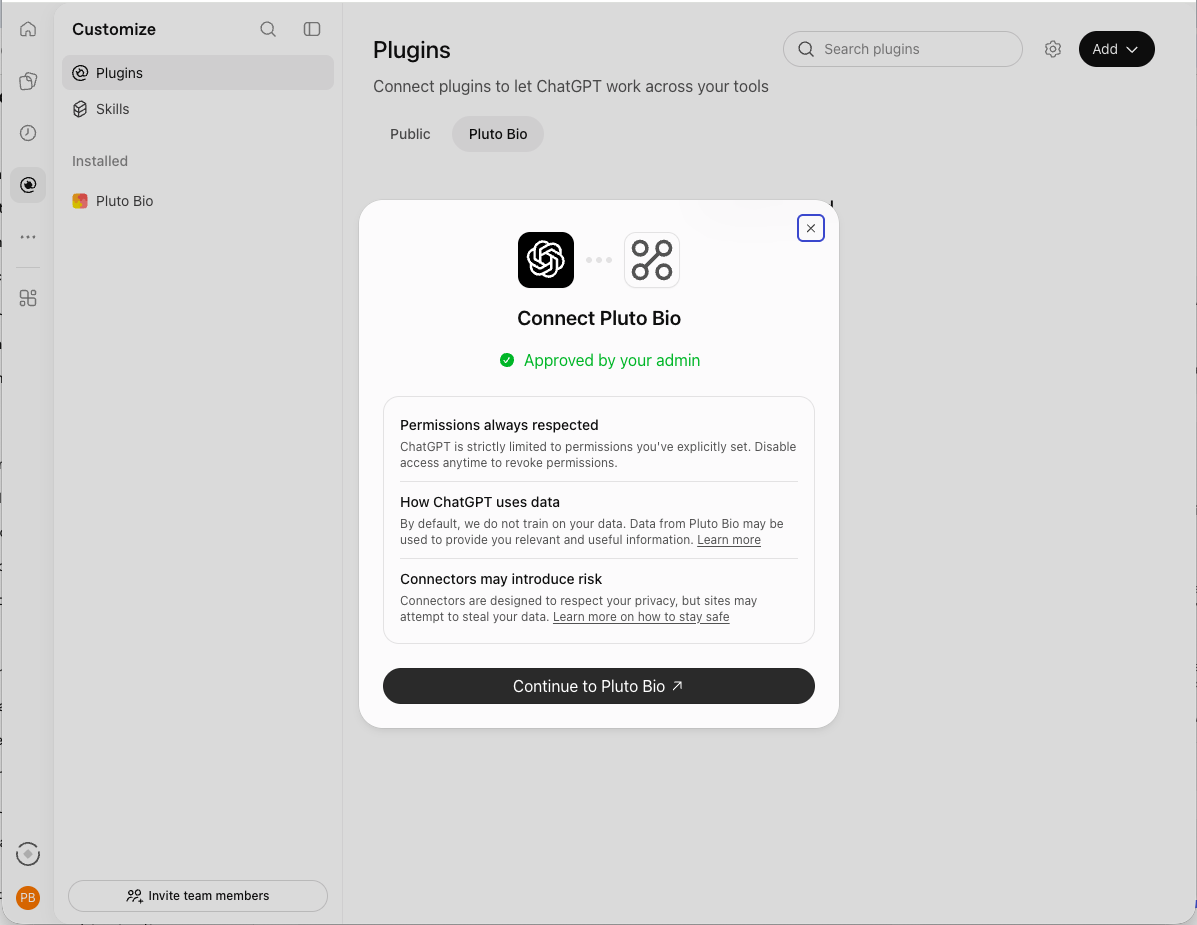
4. Connect Pluto Bio
ChatGPT shows a Connect Pluto Bio window. Select Continue to Pluto Bio. A browser tab opens for Pluto. Sign in if you're signed out.
5. Allow access to your Pluto account
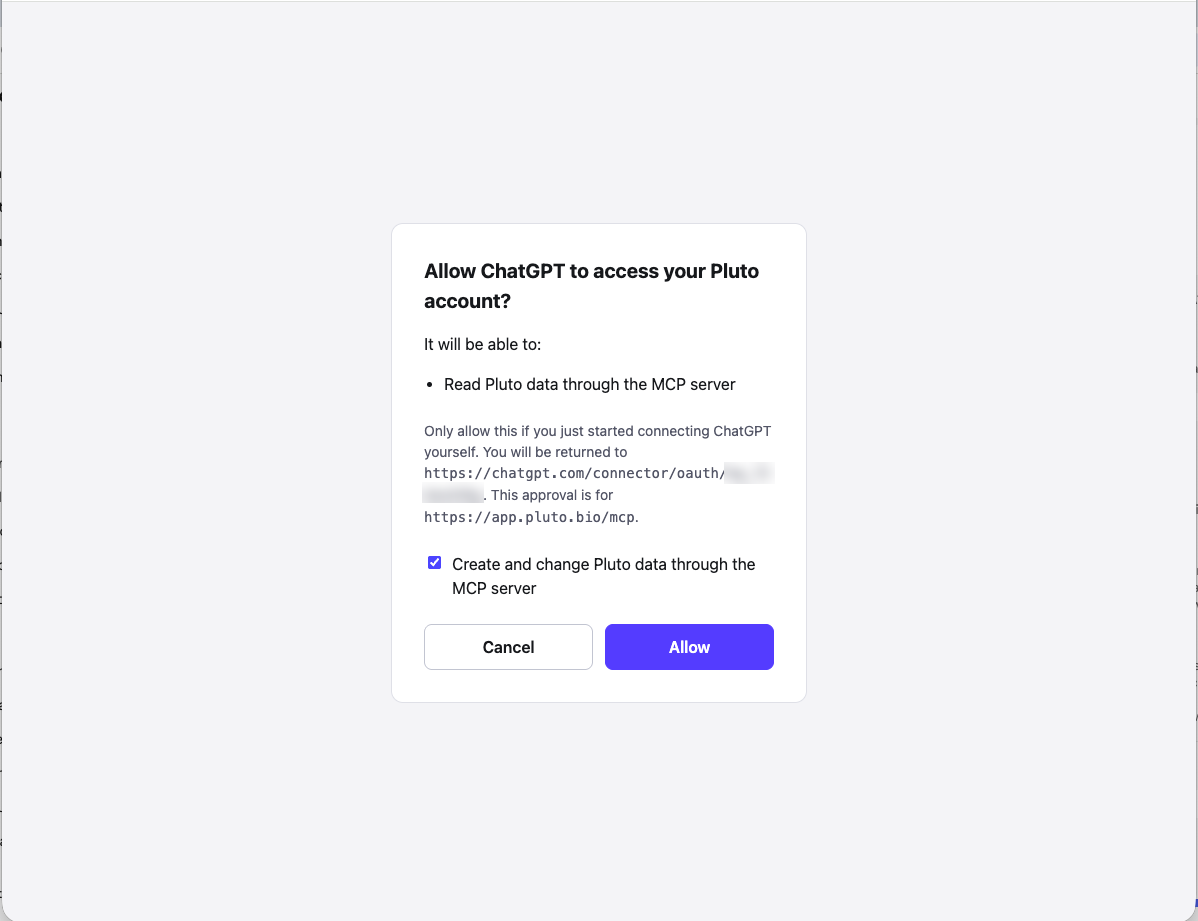
Review Pluto's consent screen. Check that the return address begins with https://chatgpt.com/ and the approval is for https://app.pluto.bio/mcp. If you see an address you don't recognize, select Cancel and contact support.
Create and change Pluto data through the MCP server is checked by default. Uncheck it if you want ChatGPT to stay read-only.
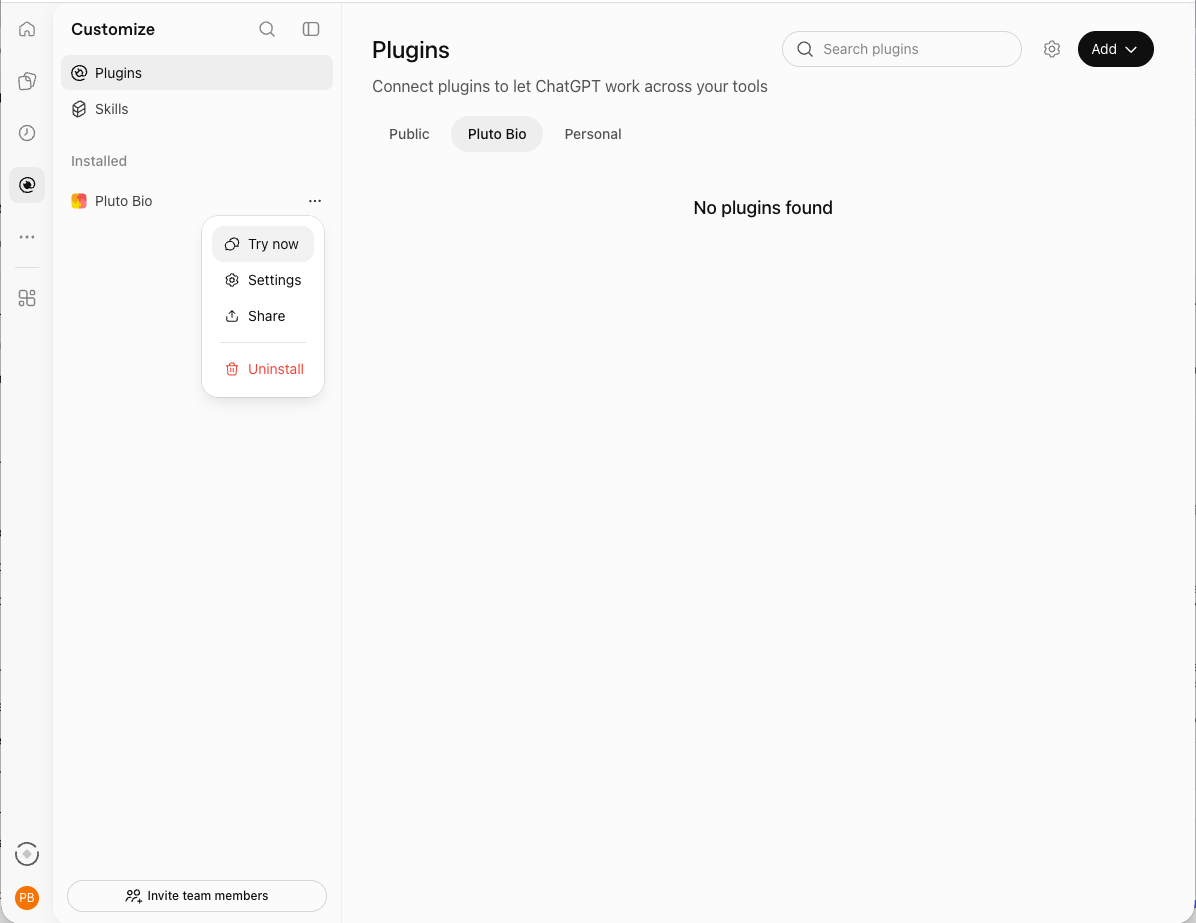
Select Allow. You're returned to ChatGPT, and Pluto Bio now appears under Installed in the left panel.
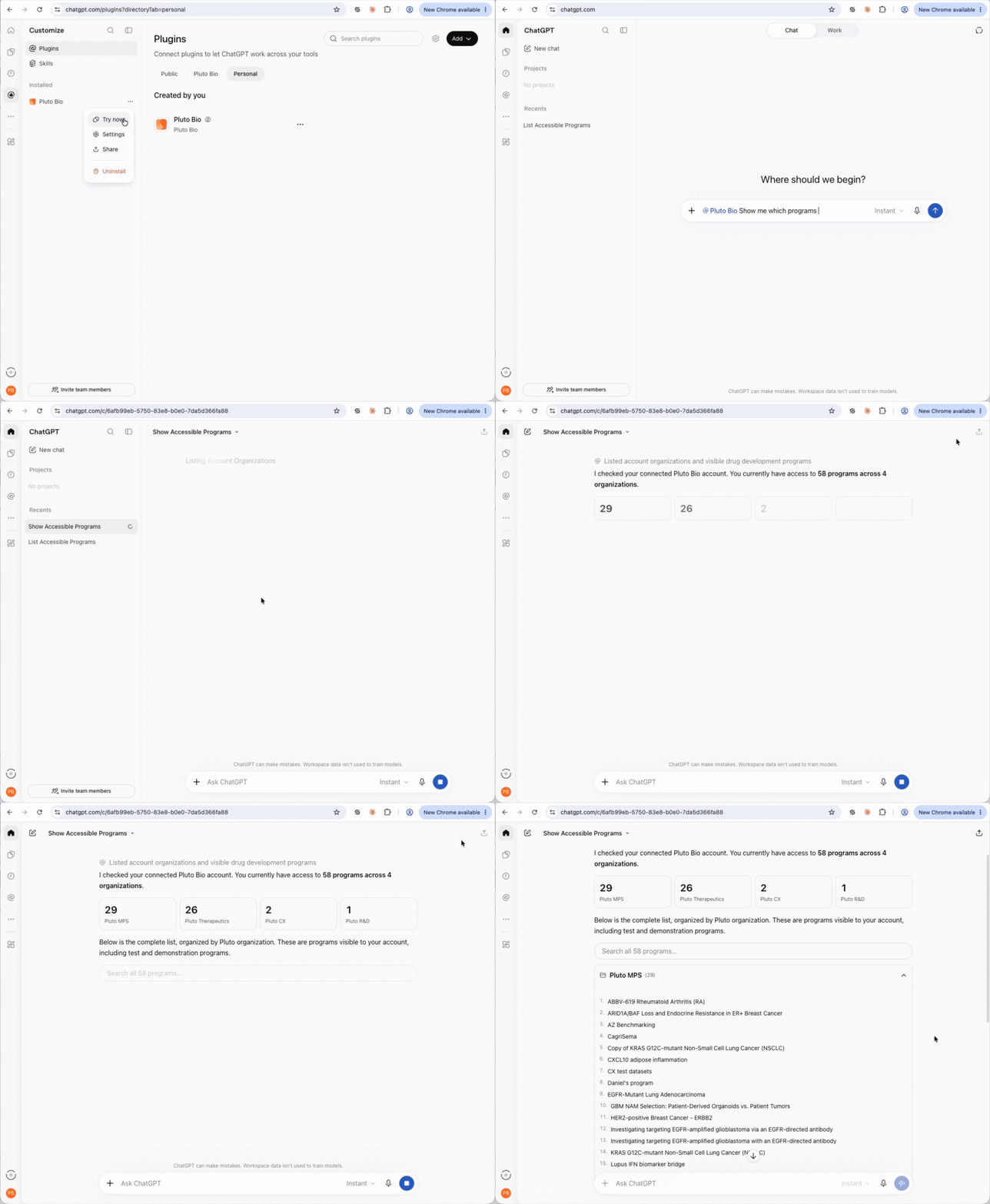
6. Try it in a chat
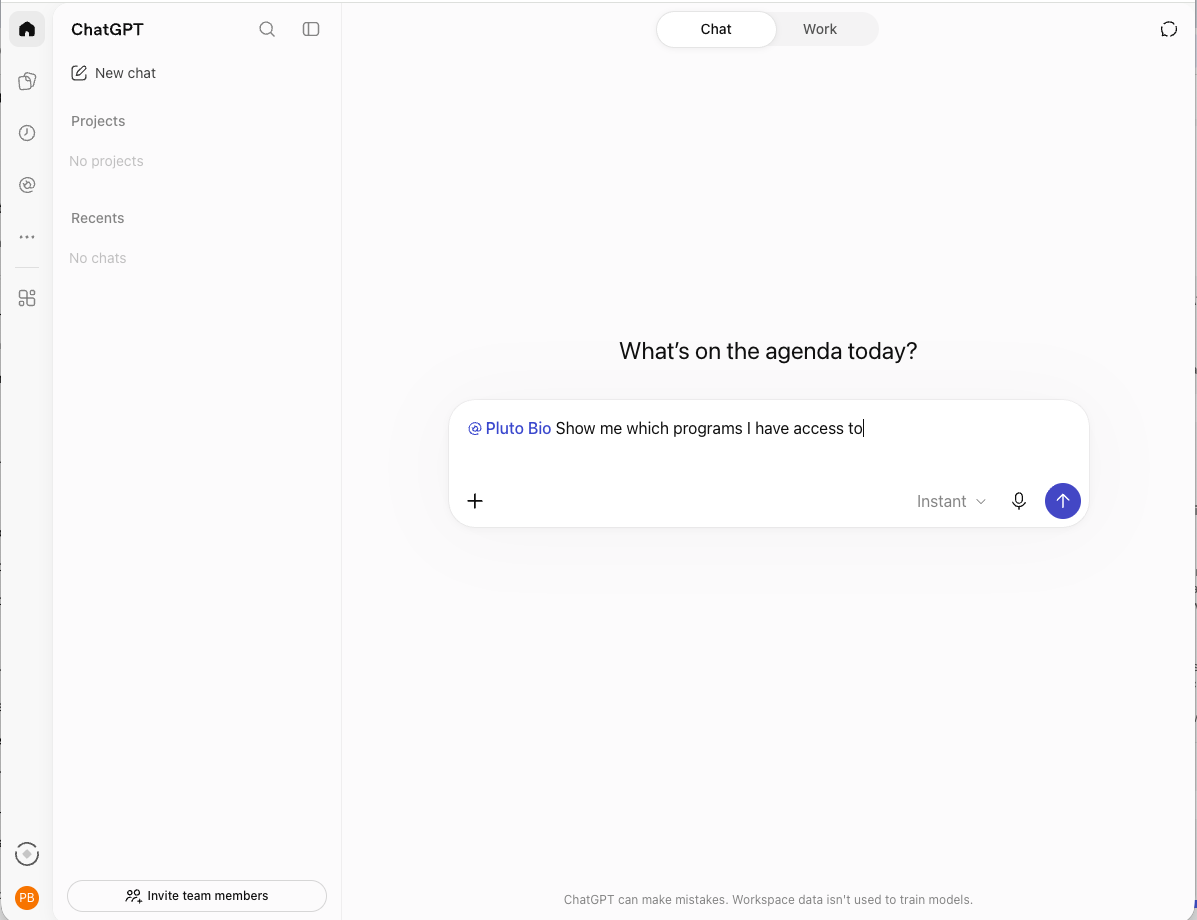
In the left panel, select the ... menu next to Pluto Bio, then select Try now. You can also start a new chat and type @Pluto Bio before your request.
Try @Pluto Bio Show me which programs I have access to. ChatGPT lists your programs, grouped by Pluto organization.
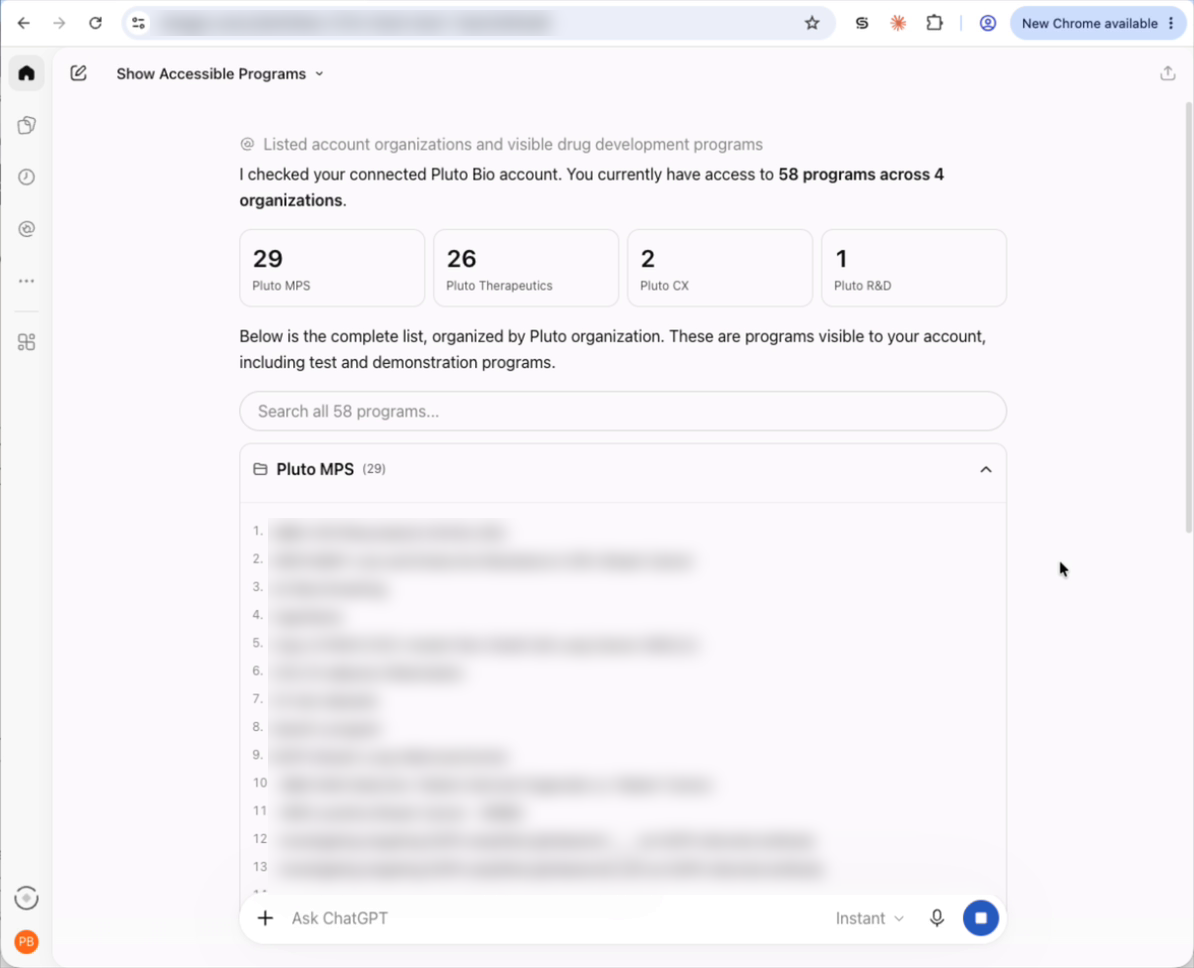
Each person signs in with their own Pluto account, so ChatGPT only sees what that person can see in Pluto.
🚀 You're all set! Try out a few example prompts or see the tool list here.
For questions about the MCP server, please reach out to mcp.support@pluto.bio