Enterprise managed authentication for Pluto Bio
Last updated: October 19, 2026
This page explains how organizations can sign their users into Pluto Bio through the Pluto MCP connector using their existing Pluto login. Users complete OAuth 2.1 sign-in before the connector returns any data. Every request requires a valid sign-in, including the initial connection and the tool list.
For support: contact @ mcp.support@pluto.bio
Overview
The connector uses the standard Pluto web login. Whichever sign-in method a user’s organization has enabled works for the connector too. Users sign in once in their AI client, and the connector then acts with their Pluto permissions. Pluto enforces those permissions, so the connector cannot reach data the user could not access in Pluto.
Choose a sign-in method
Method | Who sets it up | Who can sign in | Notes |
Sign in with Google | Nothing; each user picks the button | Any Google account invited to Pluto | Not tenant-restricted |
Self-serve Microsoft SSO | Account admin, in Account Settings | Users in your Microsoft tenant | Microsoft only; optional SCIM provisioning |
SAML SSO | Pluto, on request | Users in your identity provider | Set up per organization by Pluto |
Password | Nothing | Invited Pluto users | Still available for SSO-configured organizations |
Users at SSO-configured organizations can still sign in with a password. See Limitations below.
Sign in with Google or Microsoft
No admin setup is needed. Each user signs in to the connector by choosing Sign in with Google or Sign in with Microsoft and using an account that has already been invited to Pluto. Accounts that have not been invited cannot complete sign-in.
Self-serve Microsoft SSO
An account admin can set this up once in Pluto under Account Settings, then SSO. The Azure administrator creates the Microsoft Entra application, and an account admin enters the credentials in Pluto. Have the email domains for your organization ready (for example, yourcompany.com).
In Pluto, open your Organization settings and select your account.
Select SSO / IDP in the left menu. If no configuration exists, you will see “No SSO configuration has been set up for this account.”
Select Configure SSO
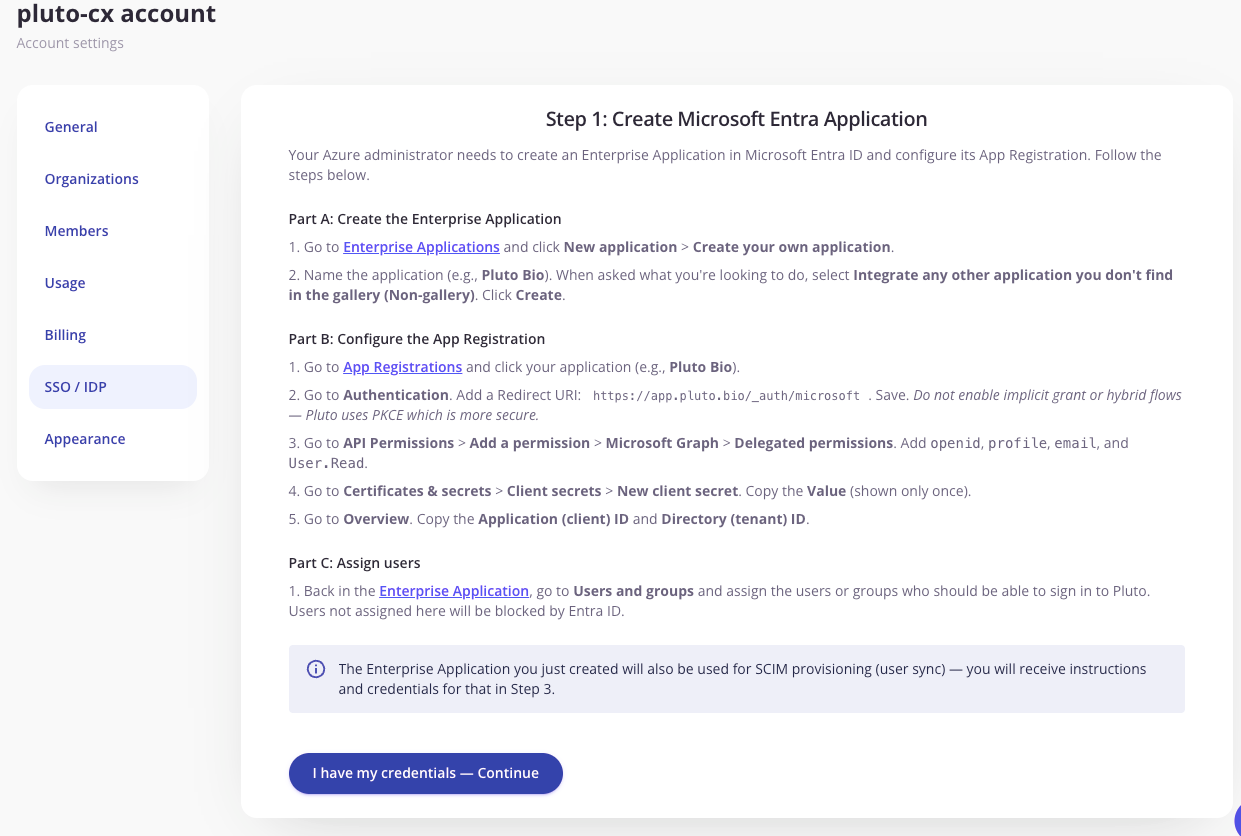
Follow the three parts shown on the Step 1 screen. (see screenshot below)
Part A: Create the Enterprise Application
In the Microsoft Entra admin center, go to Enterprise Applications and select New application > Create your own application.
Name the application (for example, "Pluto Bio"). When asked what you are looking to do, select Integrate any other application you don't find in the gallery (Non-gallery). Select Create.
Part B: Configure the App Registration
Go to App Registrations and select your application (for example, Pluto Bio).
Go to Authentication. Add this Redirect URI: https://app.pluto.bio/_auth/microsoft. Select Save. Do not enable implicit grant or hybrid flows. Pluto uses PKCE, which is more secure.
Go to API Permissions > Add a permission > Microsoft Graph > Delegated permissions. Add openid, profile, email, and User.Read.
Go to Certificates & secrets > Client secrets > New client secret. Copy the Value immediately. It is shown only once.
Go to Overview. Copy the Application (client) ID and the Directory (tenant) ID.
Part C: Assign users
Back in the Enterprise Application, go to Users and groups and assign the users or groups who should be able to sign in to Pluto. Users not assigned here are blocked by Entra ID.
Note: this same Enterprise Application is used for SCIM provisioning (user sync). You will receive SCIM instructions and credentials in the next step of the Pluto setup.
When the Azure administrator has the three values (Directory tenant ID, Application client ID, client secret Value), select I have my credentials — Continue in Pluto.
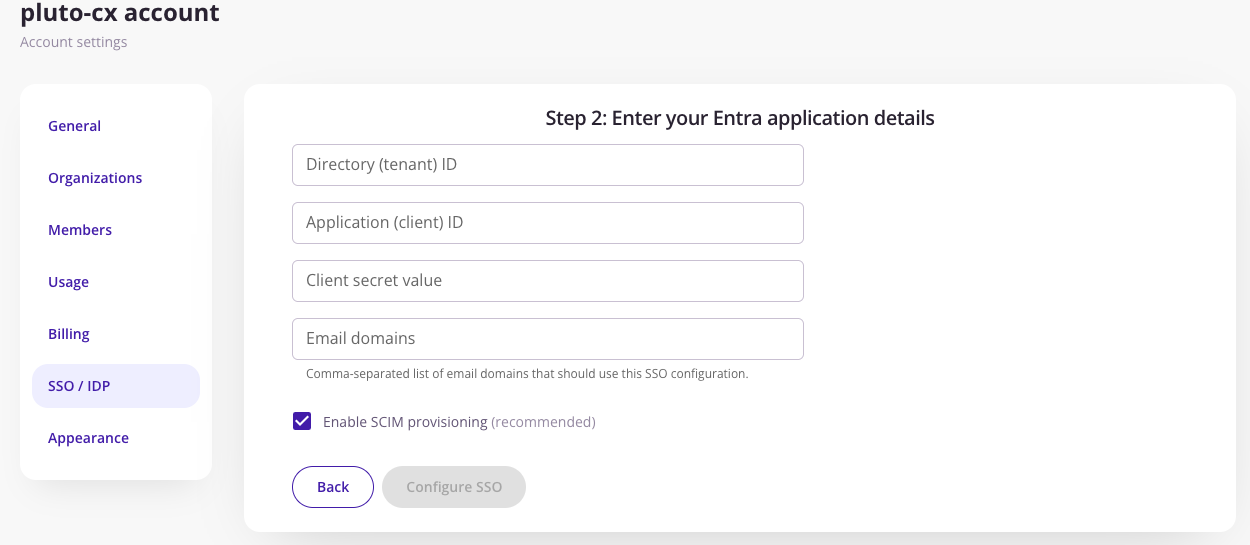
In Step 2, fill out the following fields:
- Directory (tenant) ID: paste the Directory (tenant) ID from the Overview page.
- Application (client) ID: paste the Application (client) ID from the Overview page.
- Client secret value: paste the secret Value copied in Part B.
- Email domains: enter a comma-separated list of the email domains that should use this SSO configuration (for example, yourcompany.com, yourcompany.co.uk).
Note: Enable SCIM provisioning is checked by default and recommended. Leave it on unless you do not want users created or removed automatically from your identity provider.
Finally, select Configure SSO. Pluto will then show Step 3, which contains the SCIM provisioning instructions and credentials. Give these to the Azure administrator to finish user sync in the Enterprise Application.
SAML SSO
SAML is configured per organization by Pluto. It cannot be set up self-serve.
To request it, contact mcp.support@pluto.bio. Pluto will need:
The entity ID from your identity provider
The sign-in URL from your identity provider
Your X.509 certificate
Pluto can also provide its own service provider metadata for your identity provider to import. Pluto configures SAML and deploys the change for your organization. Once it is live, users sign in through your identity provider.
Pluto has live SAML connections with Okta, Keycloak, JumpCloud, Microsoft Azure/ADFS, and Google Workspace. Contact us to confirm support for your identity provider before you start.
Limitations
SSO is offered, not required. Password sign-in remains available to users at SSO-configured organizations.
Pluto does not currently offer an SSO-only setting, so the connector cannot enforce SSO-only sign-in.
Verify the connection
Have a test user who is assigned in your identity provider, or who has been invited to Pluto, sign in to the connector from your AI client.
Ask the client to list your Pluto programs.
Confirm that the user sees only the programs they have access to in Pluto.
Troubleshooting
Sign-in fails at the identity provider: Check the entity ID, sign-in URL, and certificate with Pluto. Confirm that the user is assigned to the Pluto application in your identity provider.
User signs in but sees no programs: Confirm that the user has a Pluto account with access to the relevant programs.
User is sent back to the login page after approving the connector: This is a known issue under review. Contact mcp.support@pluto.bio.