Connecting the MCP in Microsoft Copilot Studio
Last updated: October 29, 2026
In Microsoft Copilot Studio, Pluto Bio is added as a Model Context Protocol (MCP) tool on an agent. The first person adds the Pluto Bio server once. After that, anyone in the same Copilot Studio environment can find Pluto Bio in the tool directory and add it to their own agents. These steps use the classic Copilot Studio experience.
For instructions on setting up the MCP in Claude, see our help doc Connect your AI assistant to Pluto.
1. Open Copilot Studio
Go to https://copilotstudio.microsoft.com/ and sign in with your Microsoft work account. Check that the Environment in the top-right corner is the one your team uses.
2. Create a blank agent
In the left menu, select Agents, then select Create blank agent.
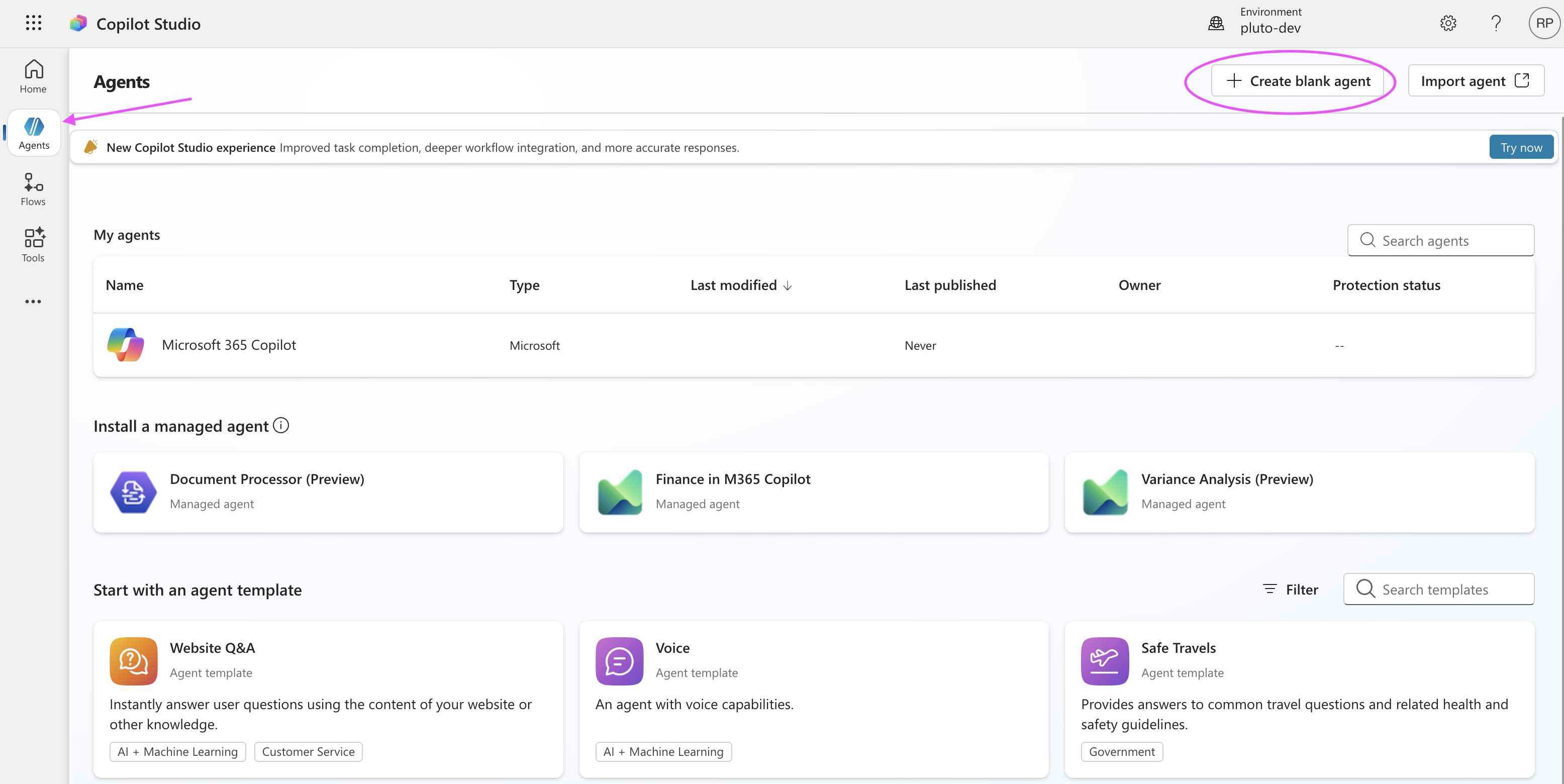
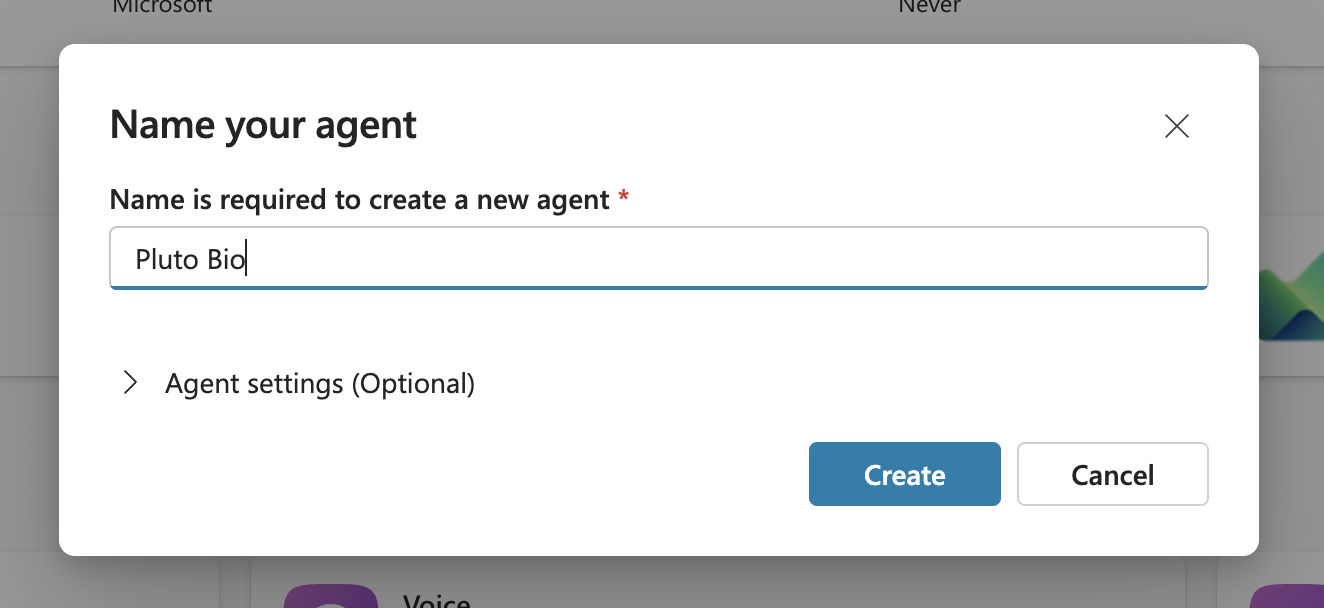
3. Name the agent
Enter a name for the agent, for example Pluto Bio, then select Create.
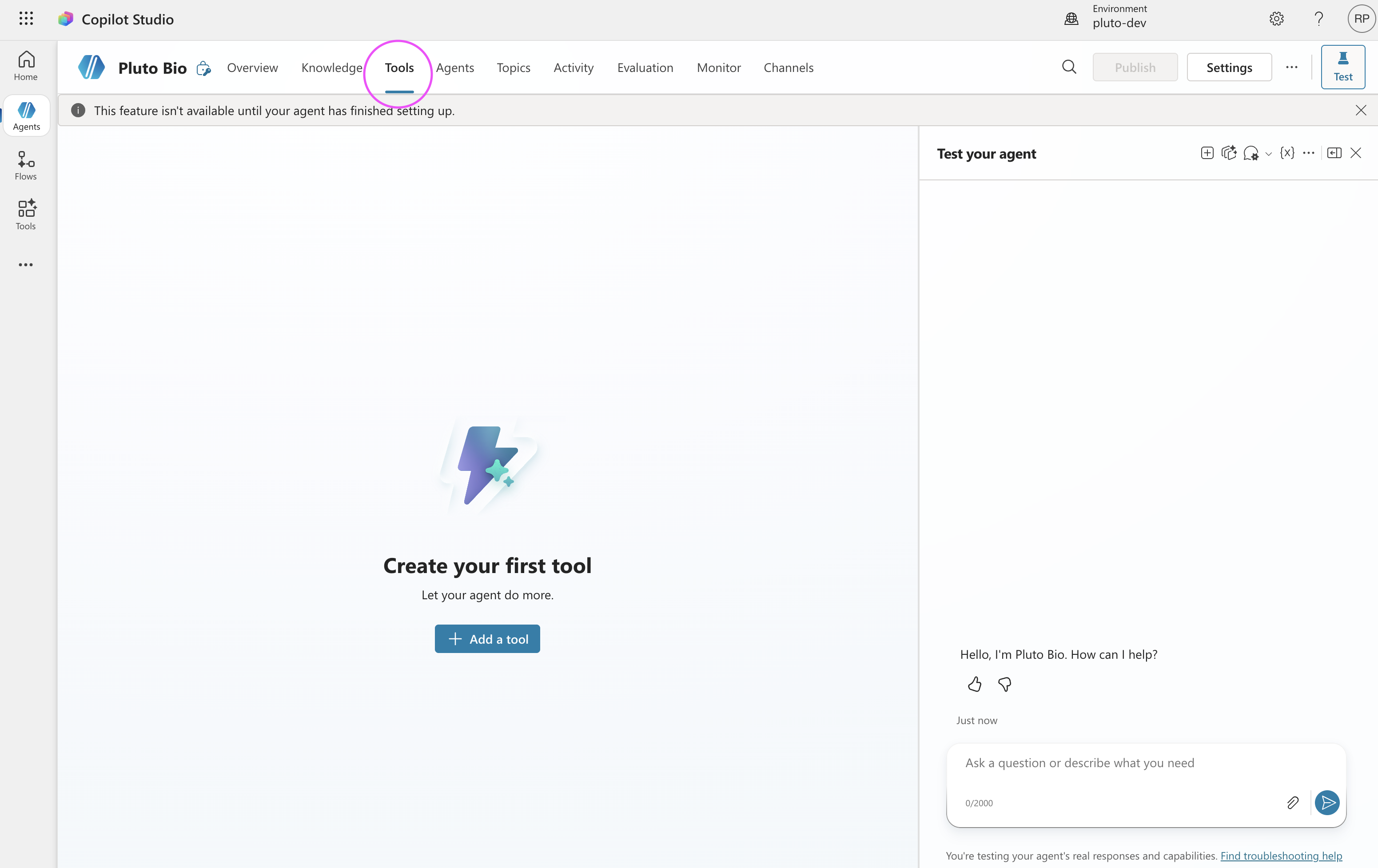
4. Add a tool
When the agent page opens, go to the Tools tab and select Add a tool.
If you see This feature isn't available until your agent has finished setting up, wait a minute for setup to finish, then try again.
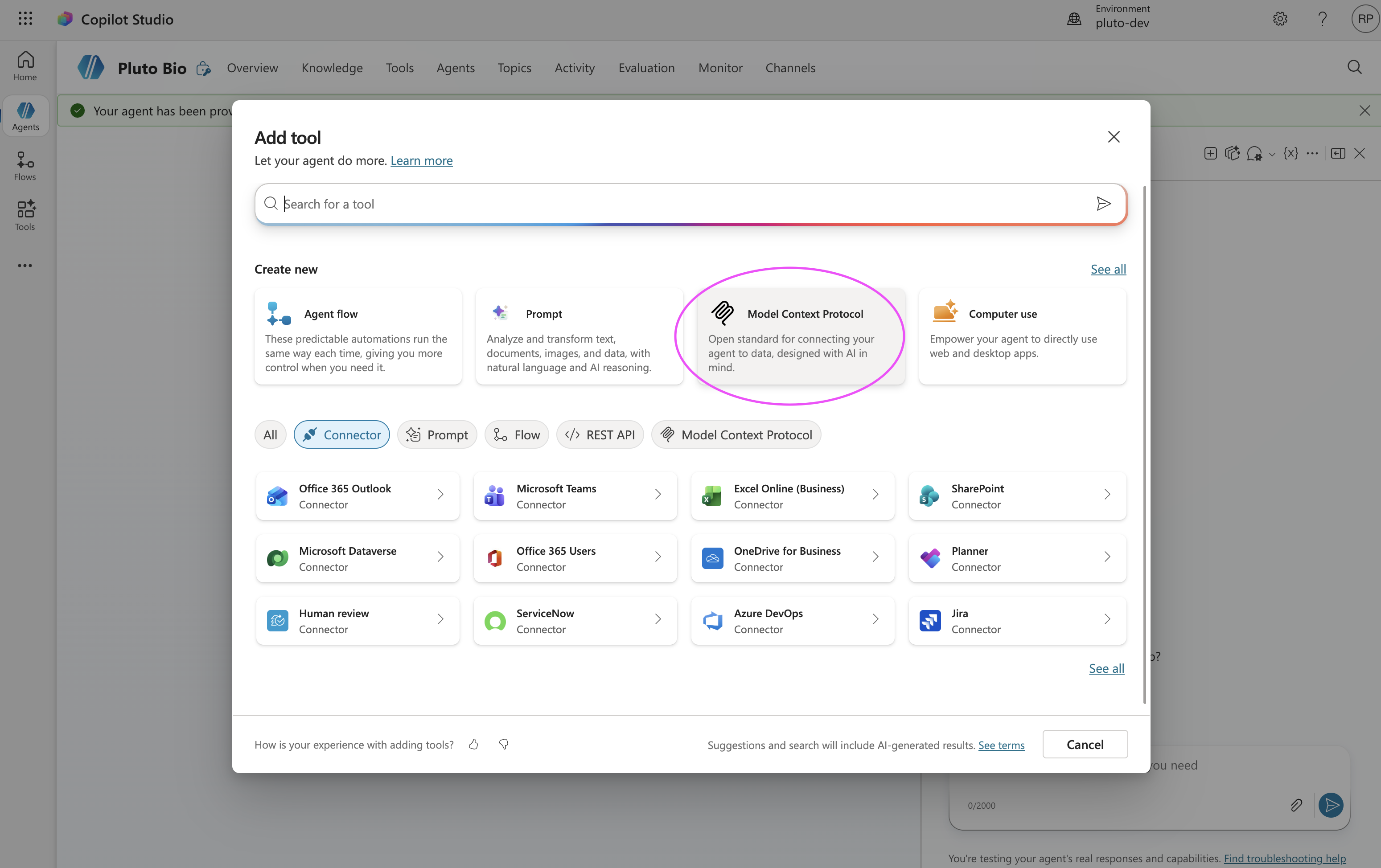
5. Choose Model Context Protocol
Under Create new, select Model Context Protocol.
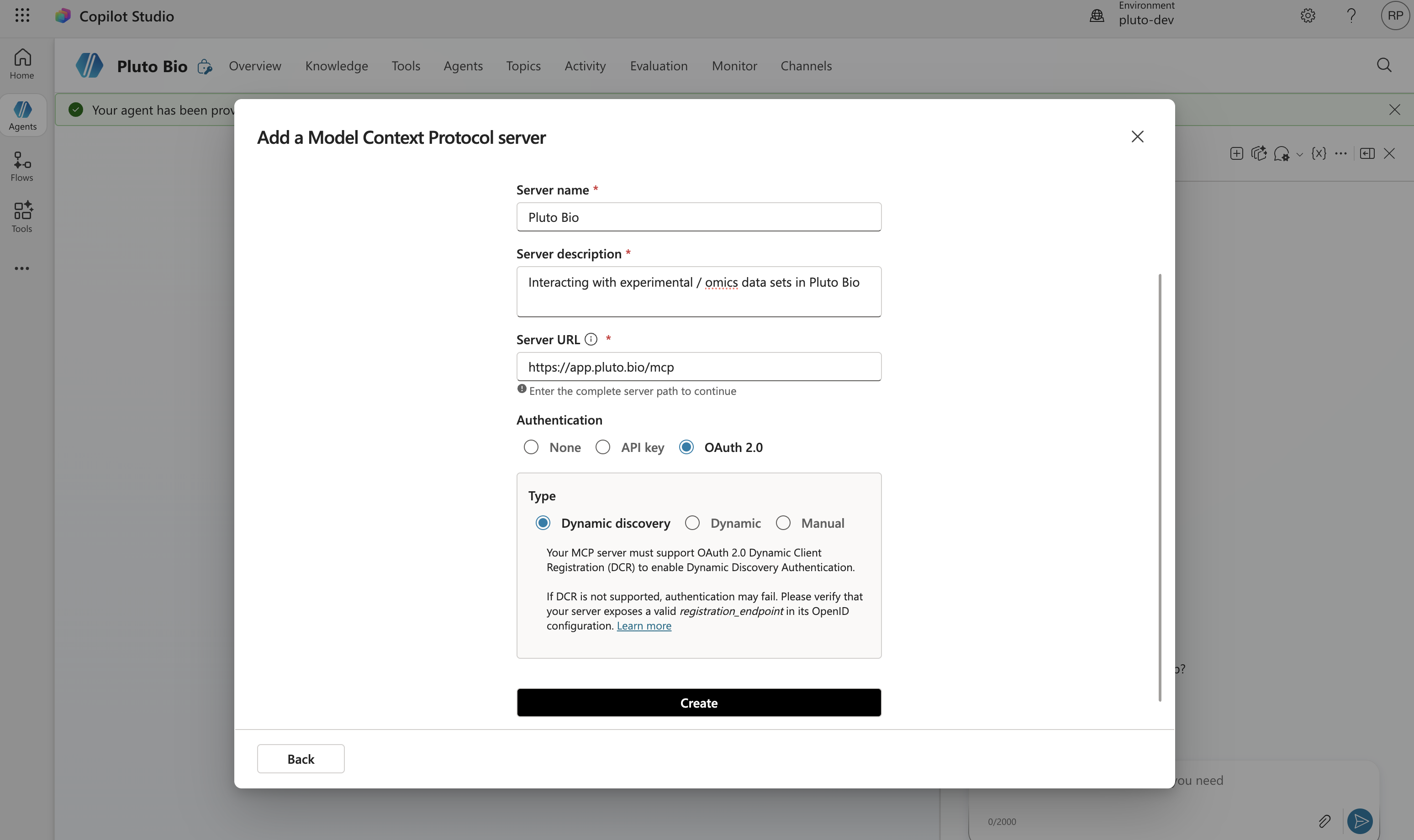
6. Enter the Pluto Bio server details
Fill in the form with these values, then select Create.
Field | Enter |
|---|---|
Server name |
|
Server description | A short description of what Pluto holds, for example |
Server URL |
Note: for enterprise clients, please contact mcp.support@pluto.bio as your server URL may be different. |
Authentication | OAuth 2.0 |
Type | Dynamic discovery |
The agent reads the server description to decide when to use Pluto, so describe the data rather than the company.
Don't choose None or API key. Pluto rejects requests without a sign-in. Dynamic discovery uses Pluto's automatic client registration, so you don't need a client ID or secret.
7. Connect your Pluto account
Copilot Studio asks you to create a connection to Pluto Bio. After you confirm, a browser tab opens for Pluto. Sign in if you're signed out, then review Pluto's consent screen.
Check that the return address belongs to Microsoft, then select Allow. If you see an address you don't recognize, select Cancel and contact support.
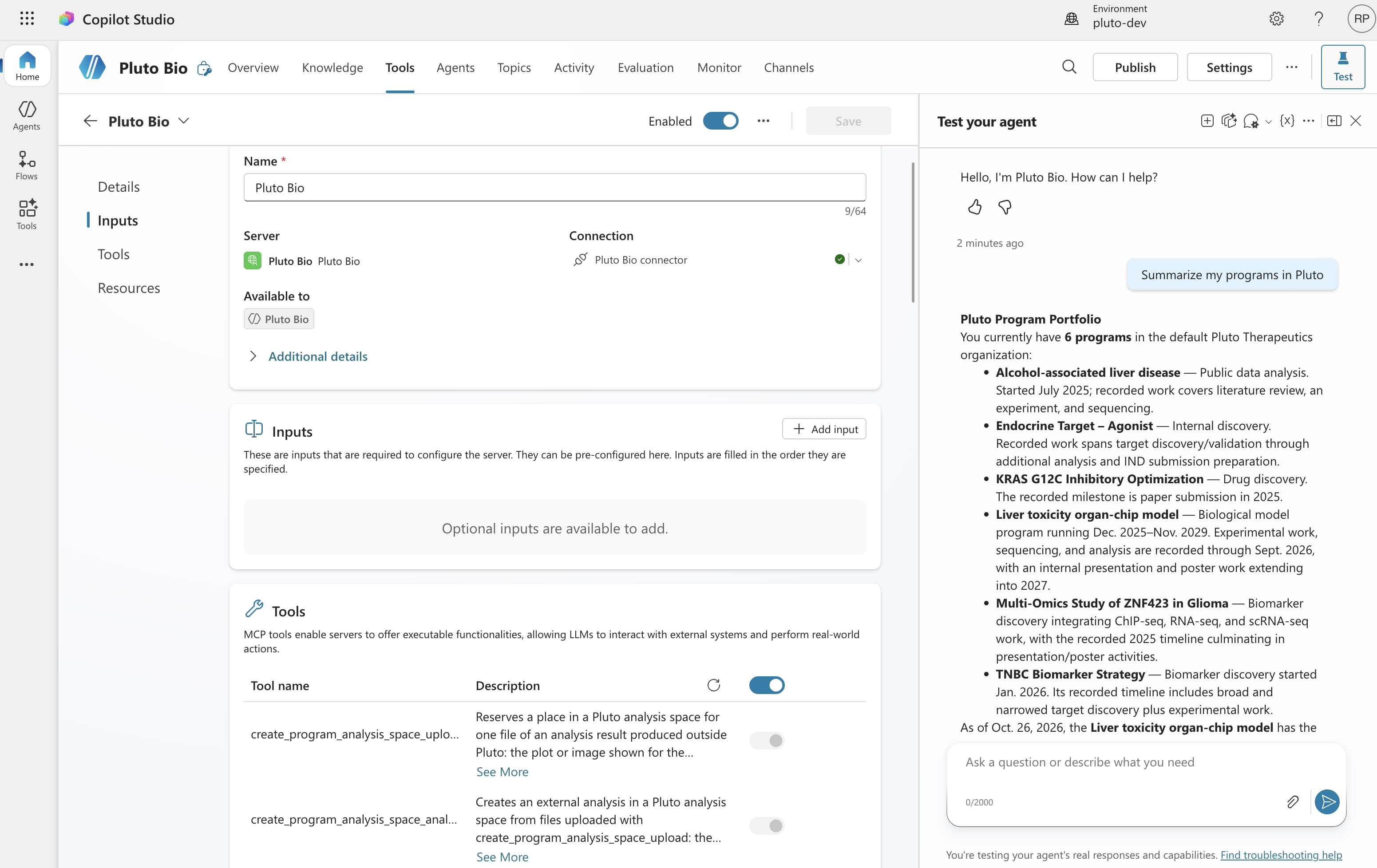
When the connection works, the Connection field on the tool page shows Pluto Bio connector with a green check.
8. Review the tools and test your agent
Once the tool is added, its page lists every Pluto tool the agent can use. Each tool has its own switch, so you can turn off the tools that create things if you want this agent to stay read-only.
Use the Test your agent panel on the right to chat with Pluto. Try Summarize my programs in Pluto or one of the prompts below.
Add Pluto Bio to another agent
You only enter the server details once per environment. To use Pluto in another agent, or for a teammate to add it to their own agent:
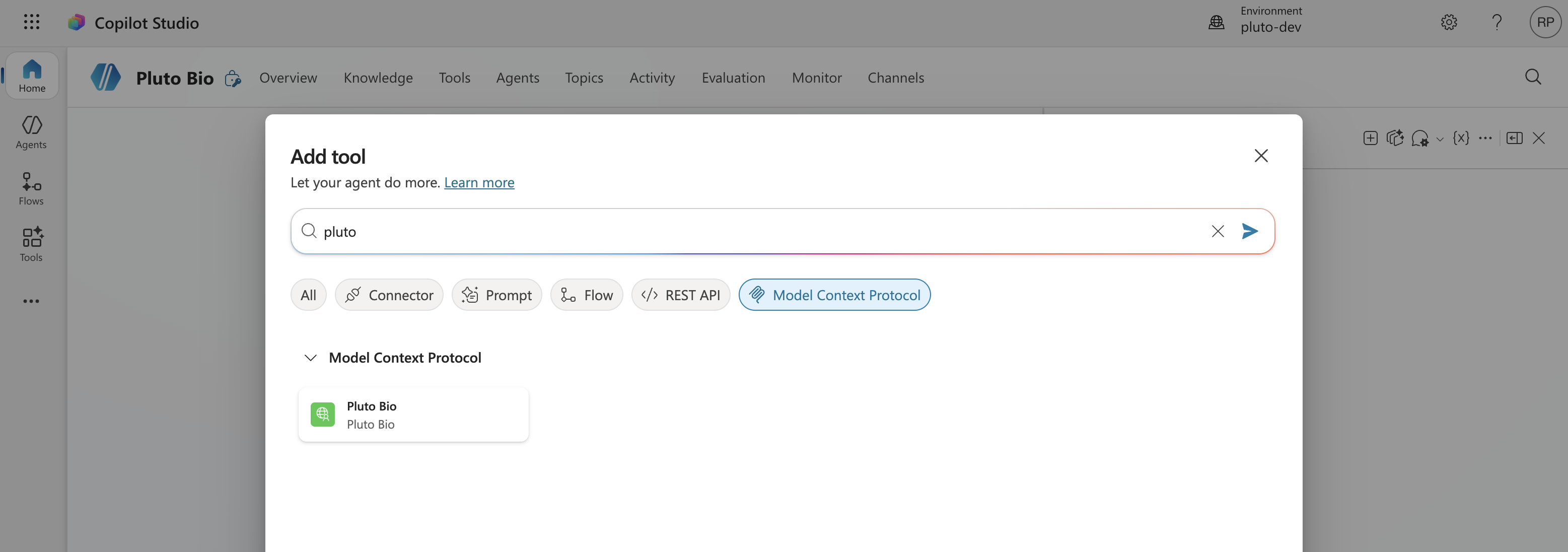
Open the agent and go to Tools > Add a tool.
Search for
plutoand filter by Model Context Protocol.Select Pluto Bio, then connect your own Pluto account as in step 7.
Each person signs in with their own Pluto account, so the agent only sees what that person can see in Pluto.
🚀 You're all set! Try out a few example prompts or see the tool list here.
For questions about the MCP server, please reach out to mcp.support@pluto.bio