Managing favorite colors
Last updated: July 21, 2025
Save commonly used colors for easy access when creating plots
Overview
In Pluto, plots can be created using one of several default starting themes. However, you can also add/remove colors from your list of Favorites Colors, which allows custom colors to be saved and recalled easily when creating new plots.
Manage favorite colors from the Account tab
Under Account settings, click on Settings to access the Favorite Colors section. Tap the "+ Color" button to define a new favorite color using the hue and gradient color selector, or by entering in a hex value.
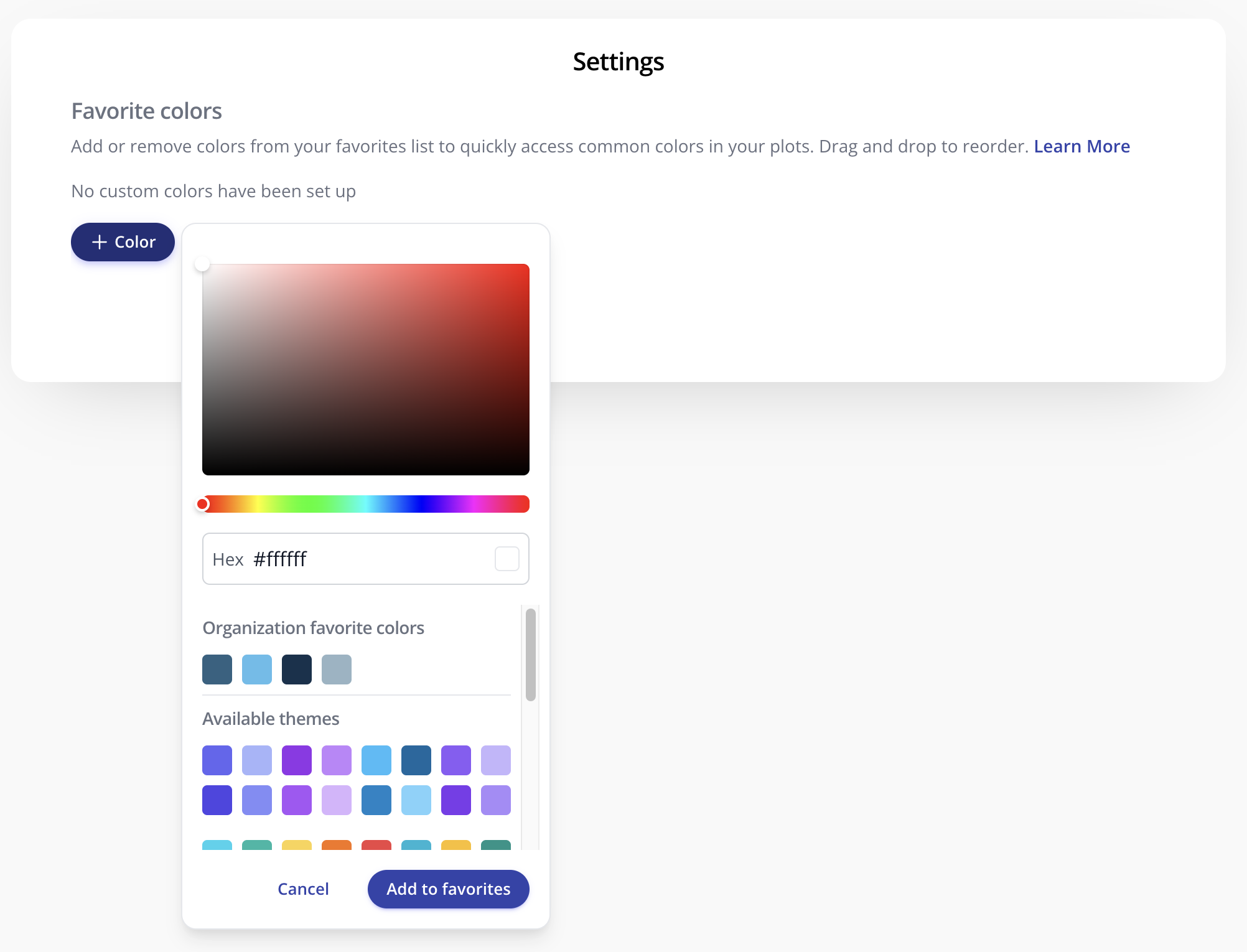
When you have selected the desired color, click the "Add to favorites" button to add the active color to your list of favorites. Drag and drop colors to change the order they appear in the favorites list.
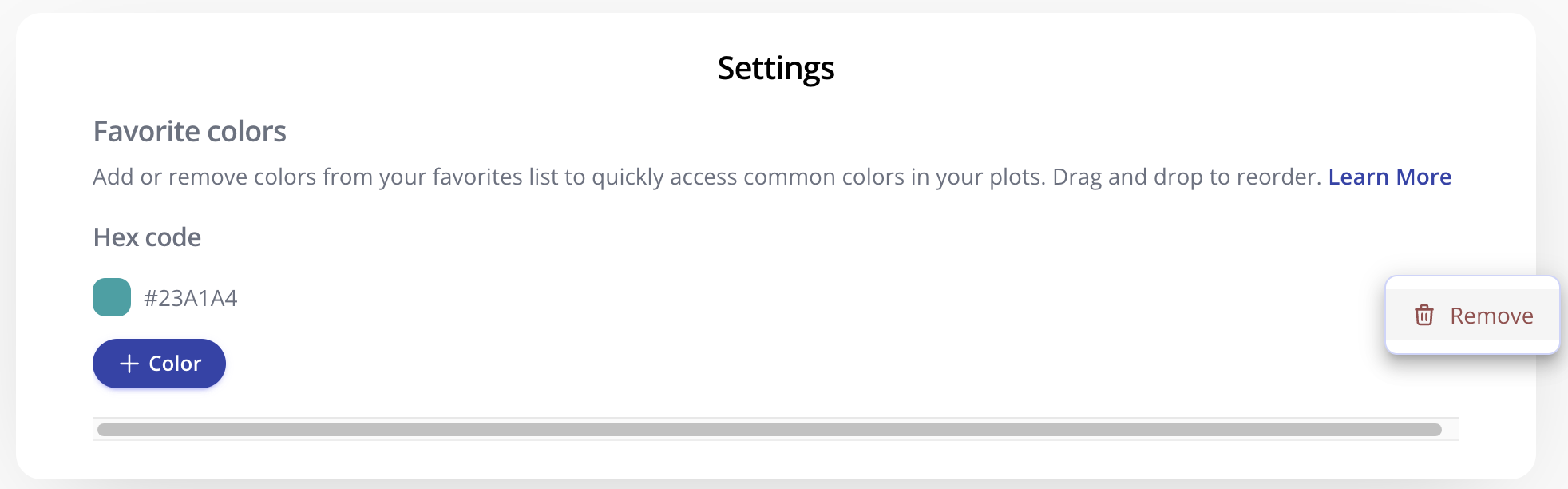
Remove a color from your list of favorites by clicking the "..." menu > Remove.
Manage favorite colors from an experiment details page
Favorite colors can also be managed while editing an individual plot. Open the Edit Plot sidebar and select "Manage favorite colors." Select a color using the hue/gradient picker or by entering a hex value, and add it to your favorites list.
Return to editing the plot group colors and you'll see the newly added color available to select from your favorites.